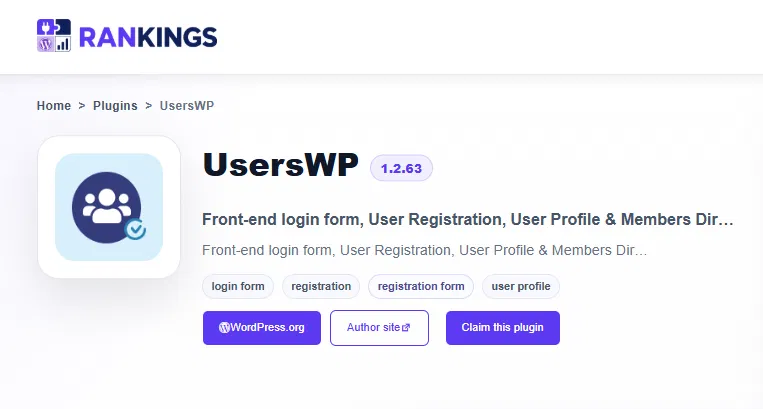
Claiming a plugin tells us you’re its owner, and unlocks the controls to make its wp-rankings.com profile your own. It’s free, and takes about a minute.
What claiming unlocks
Once you’ve claimed a plugin, you can customize the two things that come pre-filled by default:
- Choose your own SEO keywords (up to 5) instead of the defaults pulled from your plugin tags, so you track the searches you actually care about.
- Pick your own competitors (up to 3) for the comparison table, instead of the automatic picks based on shared tags.
A free account can claim up to 3 plugins.
How claiming works
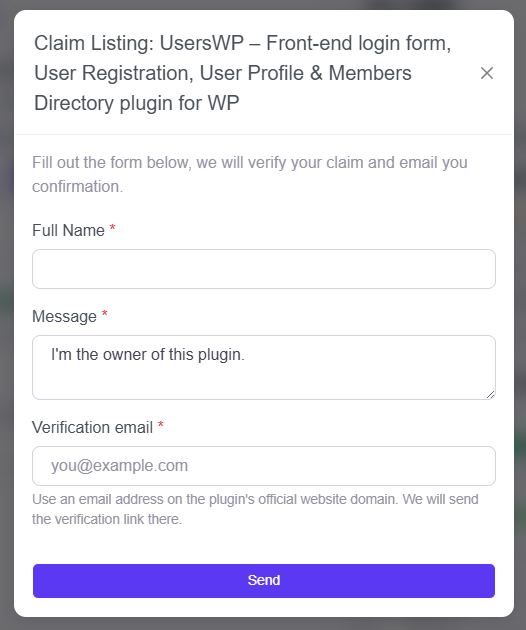
We verify ownership by email, using an address on the same domain as your plugin’s website. Here’s the flow:
- Create an account and log in.
- Open your plugin’s page on wp-rankings.com and click Claim this plugin.
- Fill in the short claim form (your name, role, and a verification email on your plugin’s website domain).
- We send a verification link to that address.
- Click the link, and your claim is approved. The owner controls unlock right away.
For example, if your plugin’s website is wpgeodirectory.com, an email like [email protected] verifies it. Generic addresses (gmail.com, yahoo.com, and similar) can’t be auto-verified, since they don’t prove ownership.
What you can do once you’ve claimed
After your claim is verified, head to your profile and select Edit plugin to unlock owner controls:
- Update your description to tell visitors what makes your plugin worth installing.
- Set your SEO keywords. We seed five from your plugin tags, but you can change them to the terms you actually care about, then fetch your live WordPress.org rankings.
- Choose your competitors. Swap the auto-picked plugins for the ones you really want to compare against.
- Add your X handle to get a mention when your plugin reaches a new growth milestone.
Tip: set your keywords before fetching, so your first rankings check uses the terms you want.
No matching email? Start with your README
We match your verification email against the website domain listed for your plugin. The simplest way to make sure that works is to set an author or plugin URL in your readme.txt, on a domain where you have an email address. That’s the first thing we check.
If you don’t have a website or a matching email address, no problem, just contact us and we’ll verify your claim manually.
Ready to claim?
Log in or create your free account, then head to your plugin’s page and look for the Claim this plugin button.
Create your free account